The Quickest Way to Change Your Face
The fastest way to change how your watch looks is to do it directly on the device. This is perfect for when you want to match your outfit on the fly or need a more functional face for a workout.
- Wake up your Galaxy Watch and go to the home screen (the current watch face).
- Long-press the center of the screen for about two seconds.
- Swipe left or right to browse through the faces currently downloaded to your watch.
- Tap the one you want to use.
If you see a face you like but want to change the colors or the data it shows, look for the Customize button at the bottom of the preview screen. This allows you to toggle through different dial colors or choose which complications (like heart rate or weather) appear in the small windows.
Using the Galaxy Wearable App
While the watch itself is great for quick swaps, the Galaxy Wearable app on your Android phone offers a much better view of your entire collection. It is easier to see fine details and manage a large library of designs.
Steps to Change via Phone
- Open the Galaxy Wearable app on your paired smartphone.
- Tap on Watch faces.
- You will see your current face at the top, followed by various categories like Graphical, Informative, or Health.
- Tap any face to immediately apply it to your watch.
From this menu, you can also manage your downloaded faces. Removing those you no longer want helps keep your watch selection menu organized and snappy.
How to Find and Install New Watch Faces
Your Galaxy Watch comes with a handful of pre-installed options, but the real power of Wear OS is the ability to add thousands of others. You are not limited to what Samsung provides out of the box.
For a massive variety of styles—ranging from classic analog chronographs to modern digital layouts—you can use Watchland. Unlike browsing a generic app store, Watchland provides a curated catalog where you can find specific styles, including luxury-inspired designs, in one place.
To install a new face from Watchland:
- Open the Watchland app on your Android phone.
- Browse the collections, such as 'Digital Dreams' or 'Diver'.
- Select a face you love and tap the install button.
- In just two taps, the face will be sent to your watch and ready to select.
This is often much faster than searching the Google Play Store manually, as the app is specifically built for watch face discovery with human-moderated designs.
Customizing Your Complications
A watch face is not just about looks; it is about the data you need at a glance. Most modern faces for the Galaxy Watch 4, 5, 6, 7, and 8 support the Watch Face Format (WFF), which makes customization seamless and battery-efficient.
When you are in the 'Customize' menu (either on the watch or in the Wearable app), you can tap specific areas of the face to change what they display. Common options include:
- Battery percentage
- Daily step count
- Heart rate
- Weather / UV Index
- Date
If you find a face you love but it does not show your steps, check the customization settings—it is likely you can just swap a different piece of data into that slot.
Troubleshooting Face Sync Issues
Sometimes you might pick a new face in an app, but it does not show up on your wrist. This is usually a simple connection or software version issue.
- Check Bluetooth: Ensure your watch and phone are actively connected. If they are in 'Standalone' mode, new faces will not sync from the phone.
- Update Wear OS: Go to Watch Settings > Software Update to ensure you are on the latest version. Watchland requires Wear OS 3 or higher (Galaxy Watch 4 and newer).
- Check Google Play: Sometimes a face requires a small 'companion' component to be installed on the watch. If prompted, follow the link to Google Play on your watch to complete the setup.
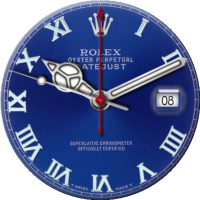 Datejust
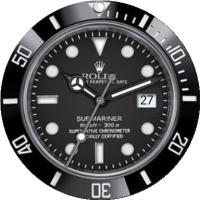 Submariner