
Put a face on your watch
Two ways: Send to watch from the studio with the Face Sender app, or Install from My AI faces in the Watchland app.
6 min8 stepsAndroid phoneWear OS 6 watch
Your watch must run Wear OS 6 and be paired with an Android phone. iPhones can’t install Wear OS faces.
-
Step 1: From the studio: Send to watch
Save the face, then press Send to watch in the bar above the preview.

-
Step 2: Scan the code with your phone
Scan the code with the Android phone your watch is paired with. On that phone the button opens it directly. The code works for 30 minutes. If Face Sender isn’t on the phone yet, the page offers it.
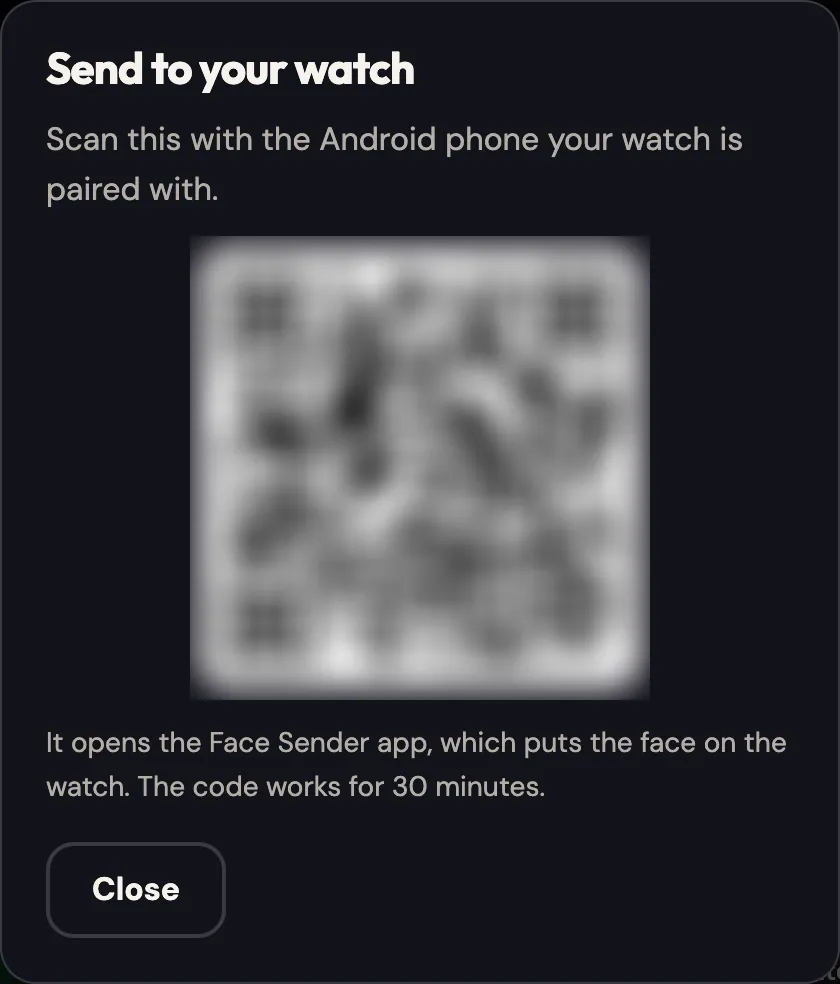
The code is blurred here; yours opens your face. -
Step 3: Face Sender opens
Face Sender is a small Watchland app that puts faces on your watch over Wi-Fi. It needs no account.

-
Step 4: The first time: turn on Wireless debugging
Face Sender shows each step with pictures. On the watch: turn on Wi-Fi on the same network as the phone; in Settings › About watch › Software information, tap Software version 5 times; then in Developer options turn on ADB debugging and Wireless debugging, and open it.
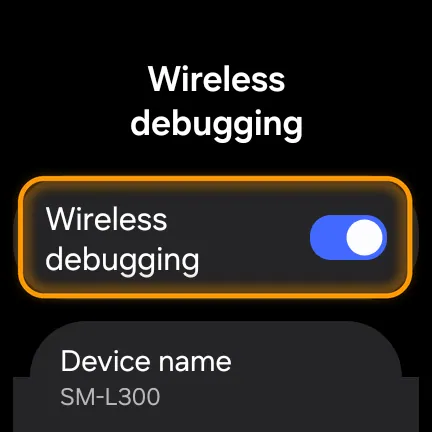
-
Step 5: Pair once
Tap Pair new device on the watch and type its code into Face Sender. Keep the watch screen on while it looks for the watch. Tick Turn off Wireless debugging afterwards if you want it off again after each send.
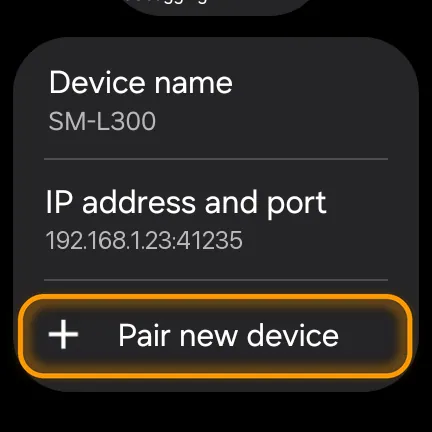
-
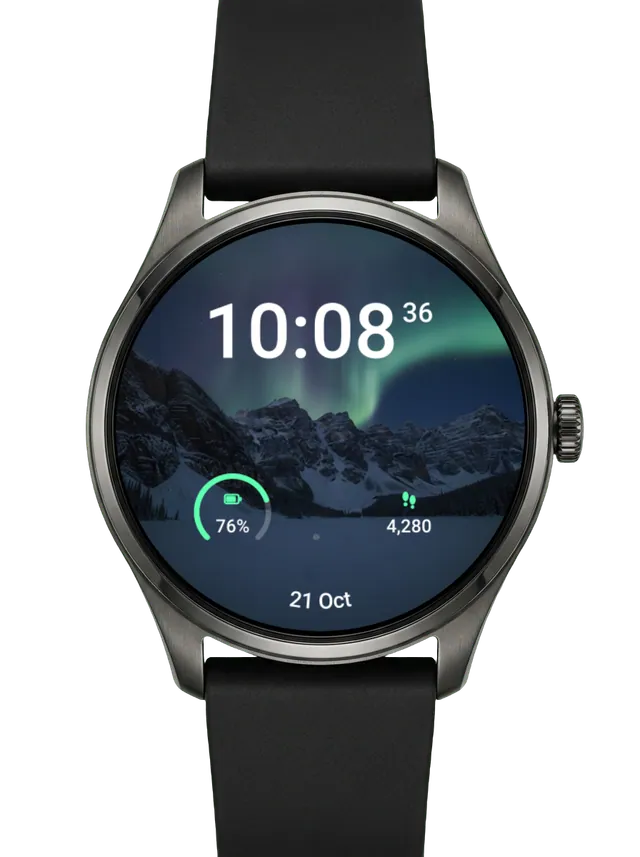
Step 6: The face is on your watch
Face Sender installs the face and makes it the active one. To switch later, long-press the watch face.
-
Step 7: From the Watchland app
Install Watchland on your phone. Its new Google Play listing is waiting for Google’s review, so for now get it from watchland.ca/get; the app then installs its watch part over Wireless debugging, once (step by step).
-
Step 8: Install from My AI faces
In the app: AI Face Creator › My AI faces, tap your face and press Install. The studio says the same under the bar when you save.
